This guide will show you how to leverage the "Create Memory" feature within Marketr's "Files and Memories" section. This powerful tool allows you to upload or select existing documents and content, which Marketr will then process to extract key information and create a memory. This enriches Marketr's understanding and enables it to provide more relevant and informed responses based on your provided context.
Step 1: Navigate to Files and Memories
First, log in to your Marketr account. On the left-hand navigation menu, find and click on the "Files and Memories" option. This will direct you to your central hub for all stored information.

Step 2: Access the Create Menu
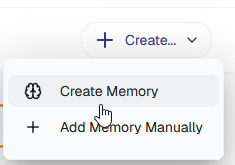
Within the "Files and Memories" section, locate the "Create..." button, typically positioned in the top right corner of the interface. Click this button to reveal a dropdown menu containing various creation options.
Step 3: Select "Create Memory"
From the dropdown menu that appears after clicking "Create...", select the "Create Memory" option. This action will initiate the process of turning your selected content into a searchable memory for Marketr.
Step 4: Upload or Select Content for Your Memory
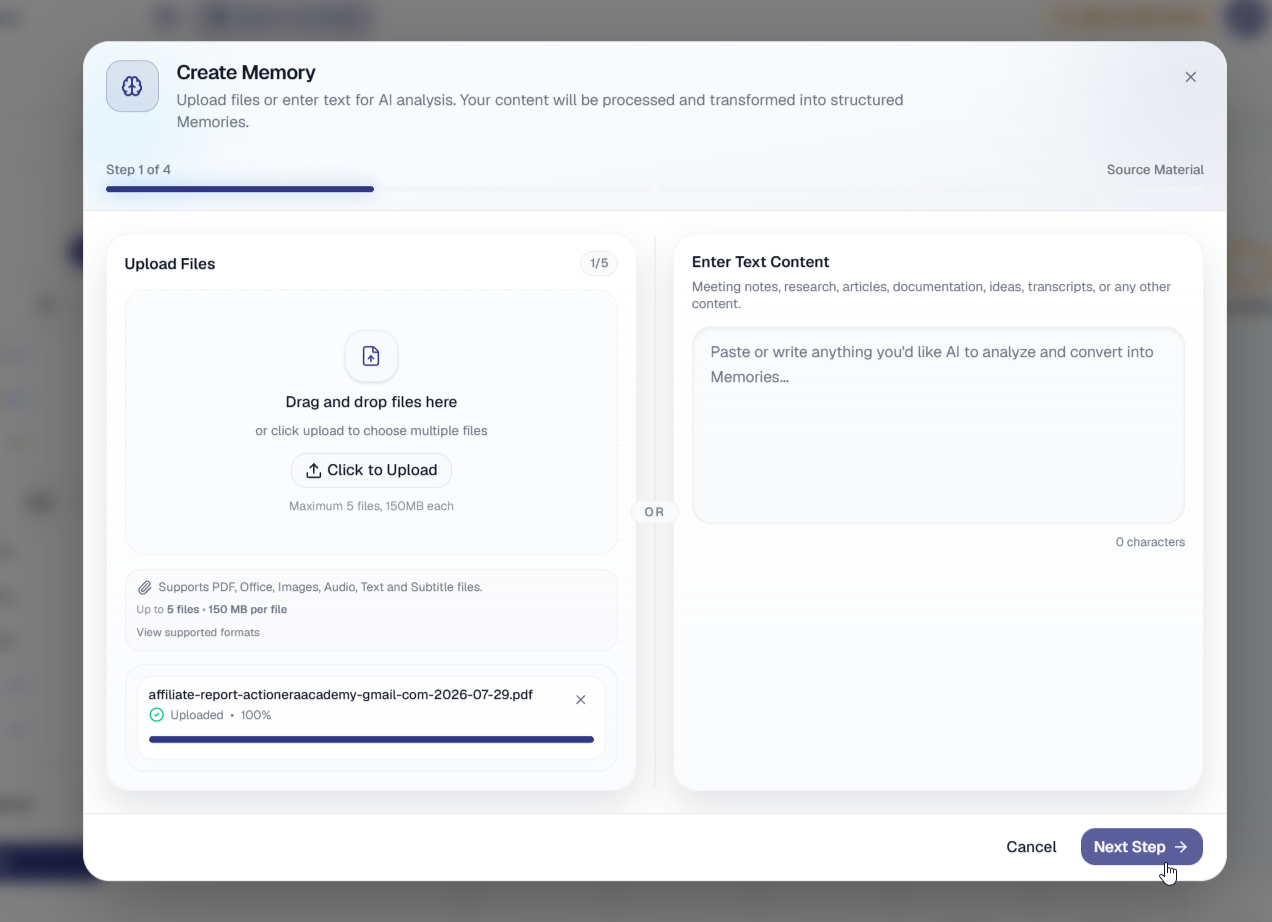
After selecting "Create Memory," you will likely be presented with options to upload files or select existing content within Marketr to form your memory.
- Upload Files: You may have an option to drag and drop files (e.g., PDFs, text documents, articles, reports) directly into the interface, or browse your computer to select them.
- Select Existing Content: If Marketr integrates with other features, you might be able to select content already stored within your Marketr account.
Choose the files or content that contain the information you want Marketr to remember.
Step 5: Configure and Process Memory
Once you have uploaded or selected your content, and click on the "Next Step Marketr will ask about the memory types that you want to Analyze and save as a memory.
Follow any on-screen prompts to complete the memory creation. Marketr will then analyze the content and integrate it into its knowledge base.

Step 6: Confirm Memory Creation
After processing, you will receive a confirmation that your memory has been successfully created and you can select the folder you want to save the memory.
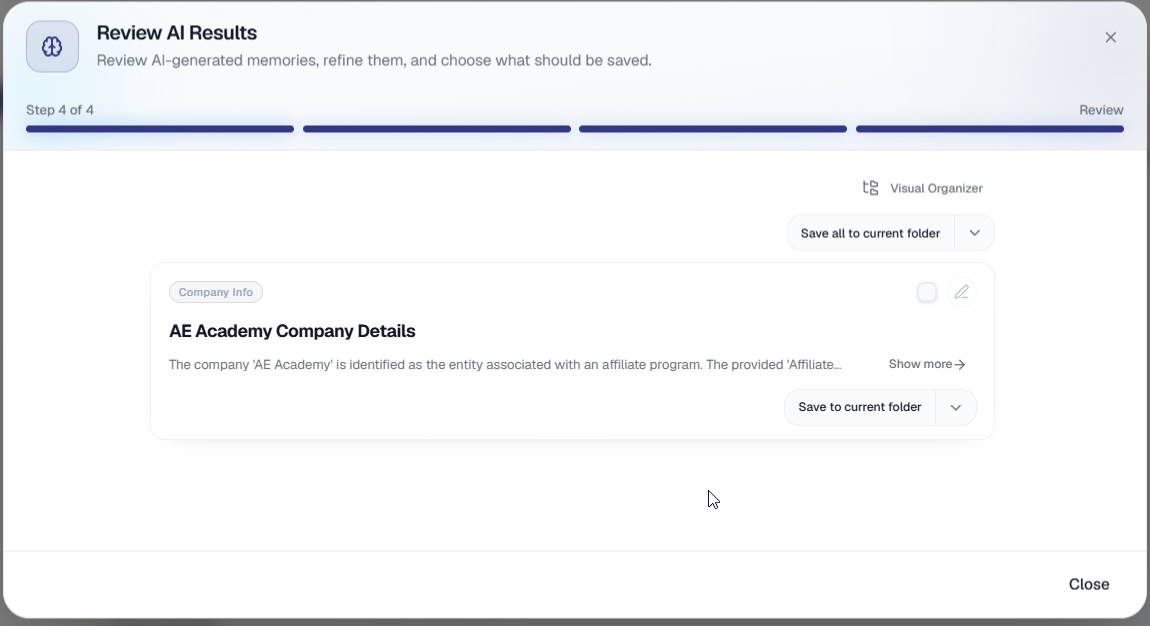
This new memory will now be available within your "Files and Memories" and will inform Marketr's future interactions and content generation.
By utilizing the "Create Memory" feature, you can efficiently transform your valuable documents and information into actionable knowledge for Marketr, making your AI assistant even more intelligent and tailored to your specific business context.
Was this article helpful?
That’s Great!
Thank you for your feedback
Sorry! We couldn't be helpful
Thank you for your feedback
Feedback sent
We appreciate your effort and will try to fix the article