The "Files & Memories" feature in Marketr is your indispensable command center for organizing, managing, and leveraging all your marketing assets and strategic intelligence. Think of it as your bespoke content library, designed to empower your campaigns and streamline your workflow by providing instant access to everything from brand guidelines to transcribed audio.
Here’s a step-by-step guide to mastering "Files & Memories":
1. Accessing Files & Memories
To navigate to your content hub:
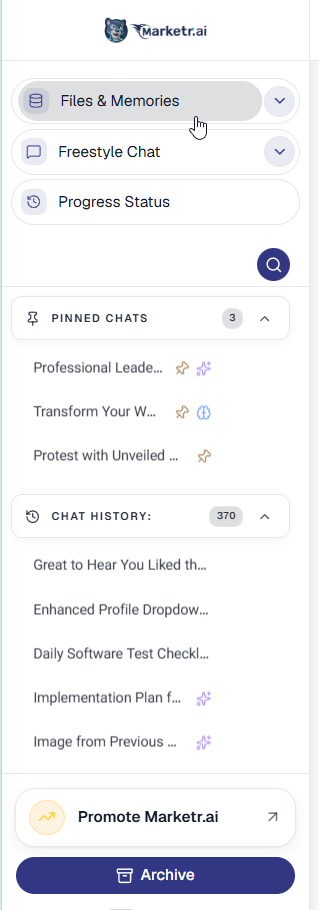
- Locate the left-hand navigation panel within your Marketr dashboard.
- Click on "Files & Memories". This will open your central repository, displaying all your stored folders and files.
2. Understanding Your File Structure
- Root Directory: At the top of your file structure, you'll see "Root". This is the highest level of your file organization, much like the main drive on your computer.
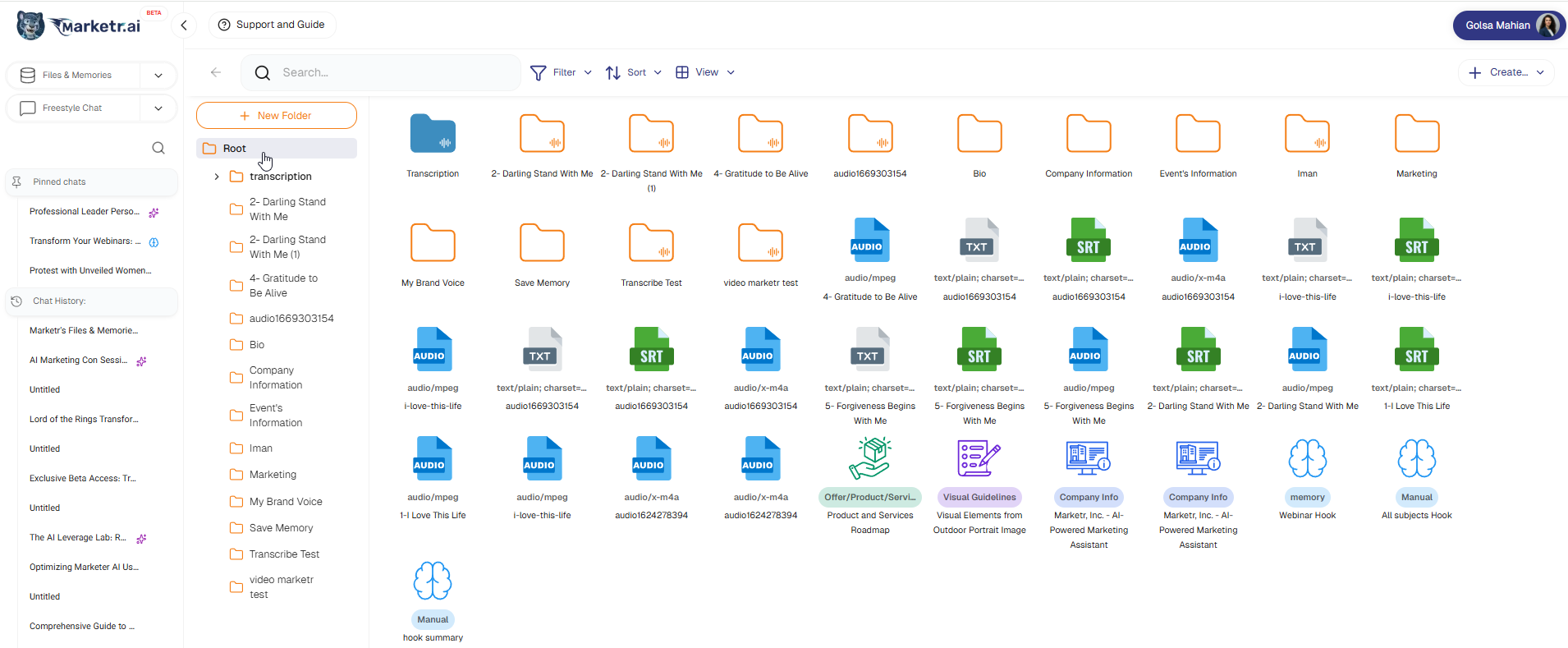
- Folders: You can create and organize your content into various folders. Examples seen include "Transcription," "My Brand Voice," "Company Information," "Marketing," "Bio," "Event's Information," and "Iman." This allows for logical grouping of related assets.
- Files:Within folders, you'll find individual assets. Marketr supports a variety of file types, including:
- Audio (AUDIO): For podcasts, voiceovers, testimonials, or any audio content.
- Text (TXT): General text documents, notes, or raw content.
- SubRip Subtitle (SRT): For video captions and transcripts.
- Specialized Marketr Assets (Represented by unique icons): These include "Manual hook summary," "memory Webinar Hook," "Offer/Product/Services Roadmap," "Visual Guidelines," "Company Info," and "All subjects Hook." These represent unique, AI-generated, or system-recognized content types that Marketr leverages for deeper understanding and content creation.
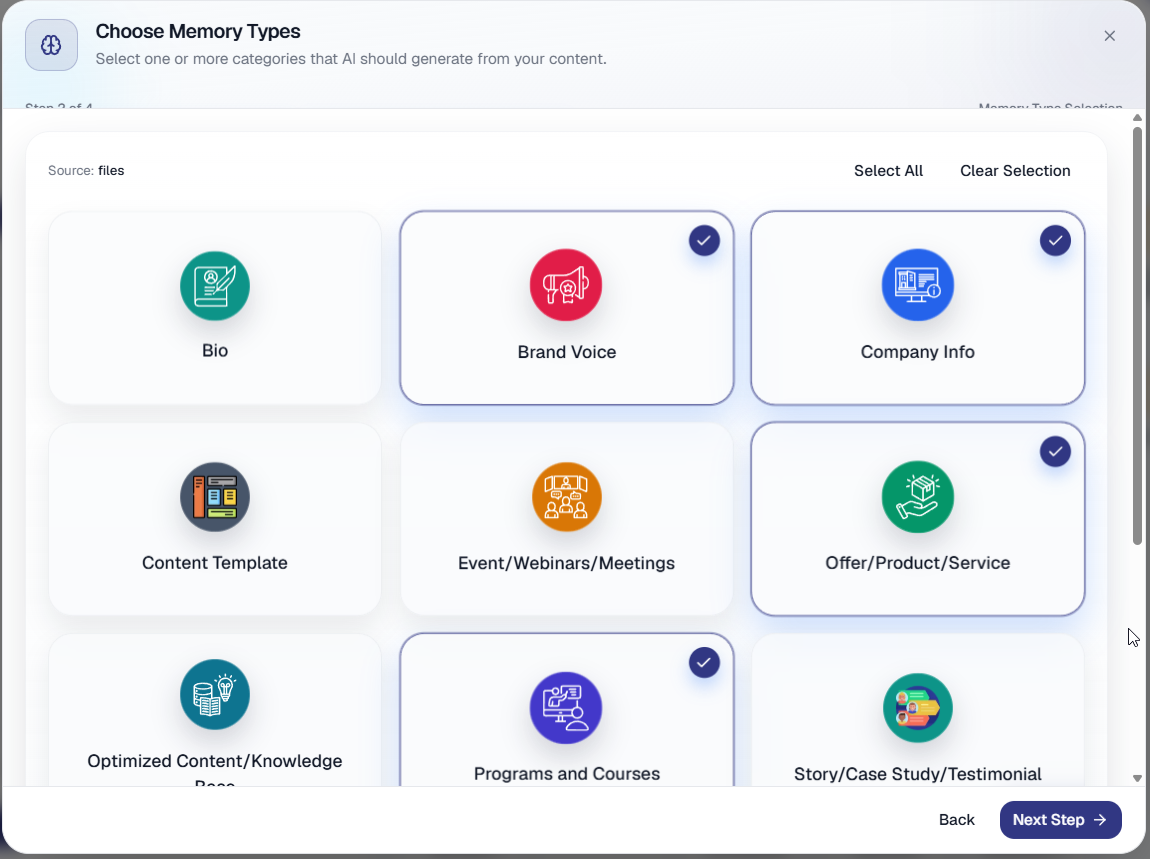
- Memories: Memories are analyzed contents that are ready to be consumed by Marketr. These memories are categorized in different structures that are used for marketing tasks called "MemoryTypes".Currently in Marketr, you can build and load the following memory types:
For more information check this article :
3. Creating New Folders
To maintain a tidy and efficient content library:
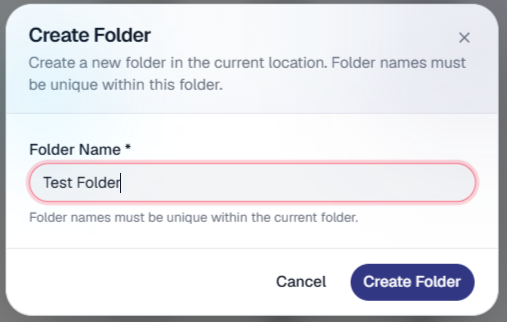
- Click the "+ New Folder" button, prominently displayed above your file list.
- A prompt will appear, asking you to name your new folder.
- Enter a descriptive name (e.g., "Webinar Assets," "Q2 Campaign Content").
- Confirm your entry to create the folder.

4. Uploading & Creating New Memory
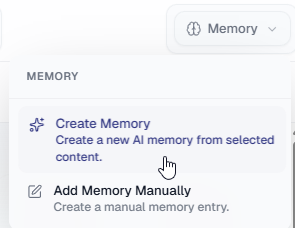
The "+ Create..." button (located in the top right corner) is your gateway to adding new assets:
- Click "+ Create...".
- From the dropdown menu, you will see options to:
- Create Memory: This option initiates the process of creating a new "memory" asset within Marketr, allowing the AI to learn specific details you provide.
- Add Memory Manually: This allows you to manually input information to create a new memory.
- Pro Tip: Leverage this feature to centralize all your raw content, ensuring Marketr AI has rich data to draw from for future content generation and analysis.
5. Navigating and Searching Your Content
- Breadcrumbs: The path above your file list (e.g., "Root > transcription") acts as a breadcrumb trail, showing your current location within the folder hierarchy. Click on any part of the breadcrumb to quickly move back to a parent folder.
- Search Bar:To quickly locate specific files or folders:
- Type keywords into the "Search..." bar at the top of the content area.
- Marketr will instantly filter and display matching results.
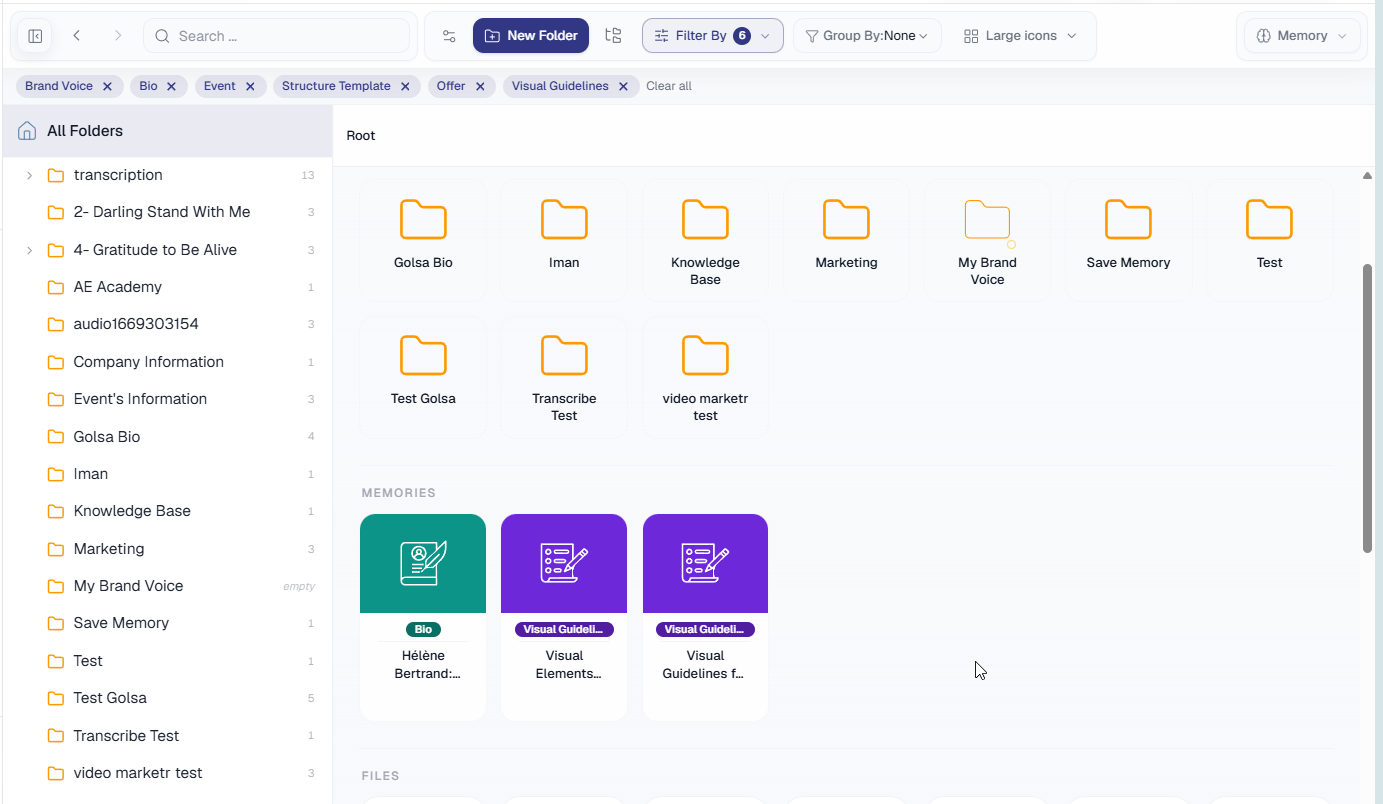
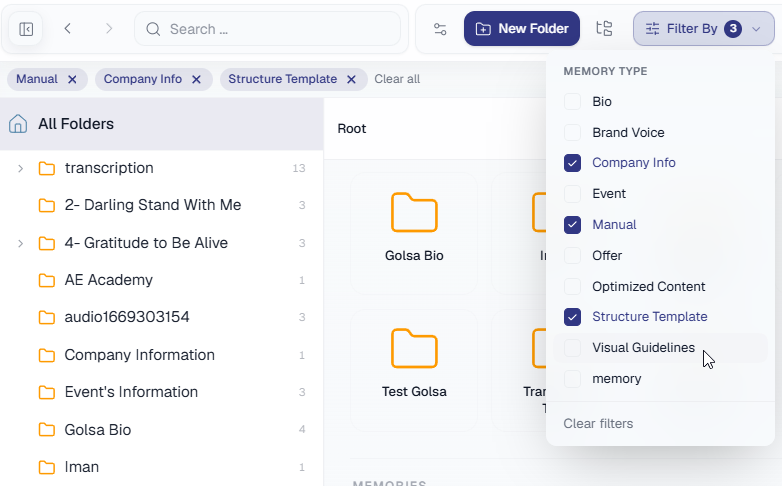
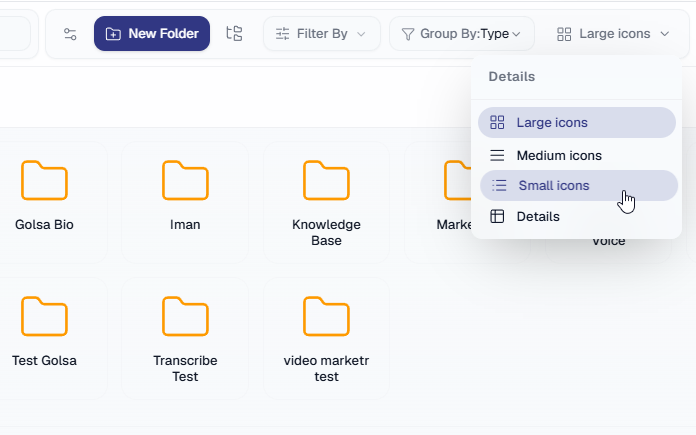
- Filtering, Sorting, and Viewing:
- Filter: Click the "Filter" dropdown to narrow down your view based on specific content types. Available filters include "Bio," "Brand Voice," "Company Info," "Manual," "Offer/Product/Service," "Structure Template," and "Visual Guidelines."
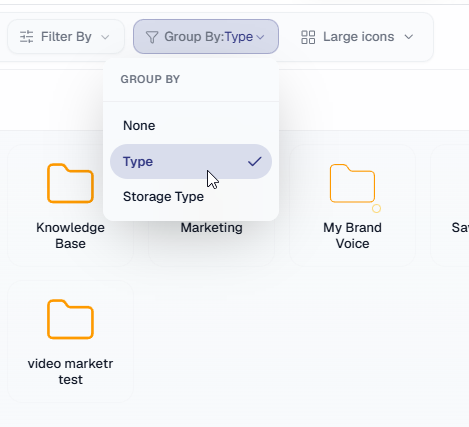
- Group By: Use the "Group By" dropdown to arrange your files. You can sort by "Type," or "Storage Type"
- View: The "View" option allows you to toggle between different display modes. Options include "Detail View," "Small Icon," "Medium Icon," and "Large Icon" to suit your preference for visual density and information display.
6. Leveraging Your Stored Memories
The true power of "Files & Memories" lies in how Marketr utilizes this stored information. These assets become the foundational knowledge base for your AI assistant, enabling it to:
- Generate more accurate and on-brand copy.
- Understand your business context deeply.
- Recall specific details and insights to inform new content creation.
By diligently organizing and populating your "Files & Memories," you build a robust and intelligent marketing ecosystem that continuously learns and adapts to your needs.
Was this article helpful?
That’s Great!
Thank you for your feedback
Sorry! We couldn't be helpful
Thank you for your feedback
Feedback sent
We appreciate your effort and will try to fix the article