This guide will walk you through the process of manually adding a memory to your Marketr account using the "Files and Memories" feature. Manually creating memories allows you to capture and store crucial information, notes, or insights that Marketr can then reference and utilize in its responses, ensuring a more personalized and context-aware experience. We currently don't offer any storage feature to keep all their files on Marketr.ai.
In the future, each plan will have a storage area, and we will allow users to upload and keep files based on their plan storage limits.
The current "Files and Memories" feature is a storage place only for "Analyzed" files and Memories that Marketr.ai creates. This means that if you want to extract visual guidelines from an image, you can use the "Create Memory" function to upload the image. The system then analyzes the image to extract the visual guidelines and allows you to save the guideline. However, it does not save the image itself that you uploaded.
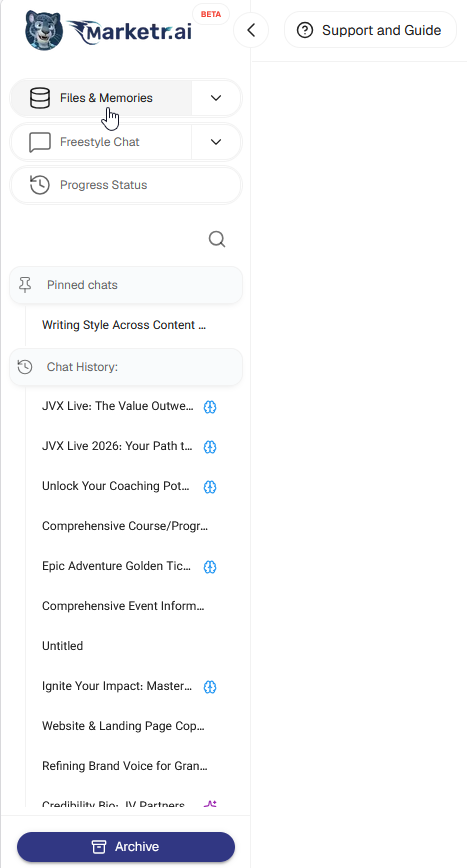
Step 1: Navigate to Files and Memories
First, log in to your Marketr account. On the left-hand navigation menu, locate and click on the "Files and Memories" option. This will take you to your central repository for all stored data.
Step 2: Access the Create Menu
Once in the "Files and Memories" section, look for the "Create..." button. This button is typically located in the top right corner of the interface. Click on it to reveal a dropdown menu with various creation options.
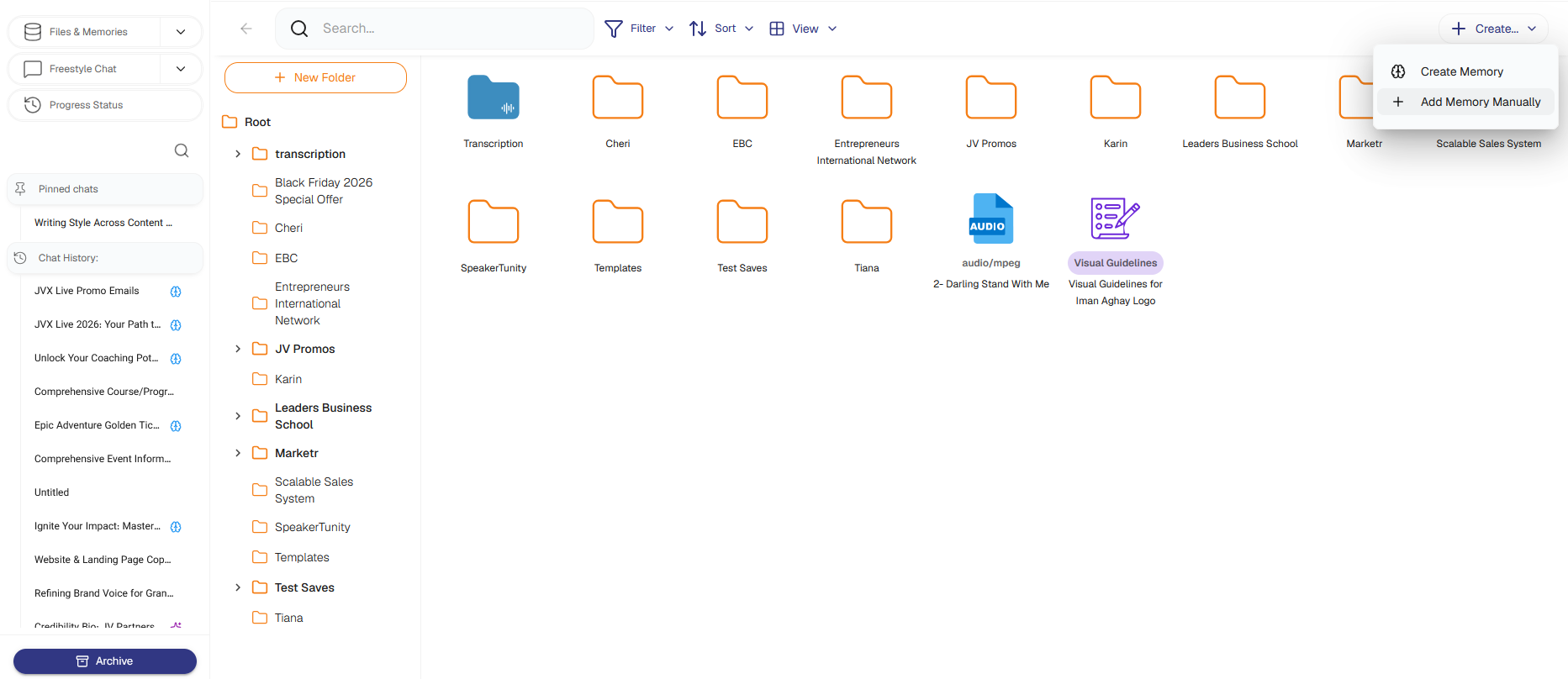
From the dropdown menu that appears after clicking "Create...", select "Add Memory Manually." This action will open a new interface or pop-up window dedicated to creating your memory.
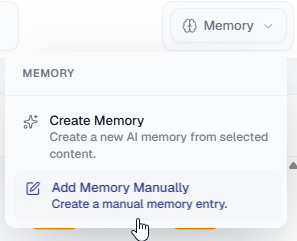
Step 4: Enter Memory Details
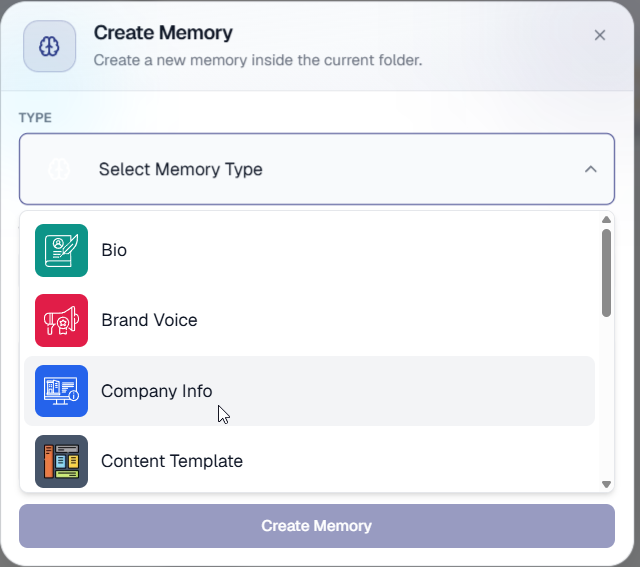
In the "Add Memory Manually" interface, you will be prompted to enter the details for your new memory.
Title: Give your memory a clear and descriptive title. This will help you easily identify it later.
Description: This is where you will input the actual information you want Marketr to remember. Be as detailed and specific as necessary.
Memory Type: Add type of memory to categorize your memory.
Step 5: Save Your Memory
After filling in all the necessary details, locate and click the "Save" or "Create Memory" button (the exact wording may vary slightly) to finalize the process. Your new memory will now be stored in your "Files and Memories" and accessible by Marketr.
By following these steps, you can effectively add and manage custom memories within Marketr, enhancing the AI's ability to understand and support your specific needs.
Was this article helpful?
That’s Great!
Thank you for your feedback
Sorry! We couldn't be helpful
Thank you for your feedback
Feedback sent
We appreciate your effort and will try to fix the article