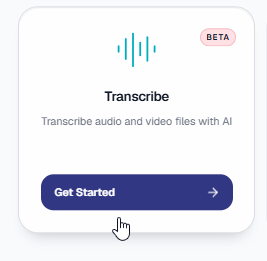
The Transcribe feature in Marketr allows you to turn your audio and video files into text quickly and accurately. This guide walks you through the steps to upload your media, choose your transcription settings, and access your finished files.
Supported File Formats
Marketr supports a wide range of common audio and video formats.
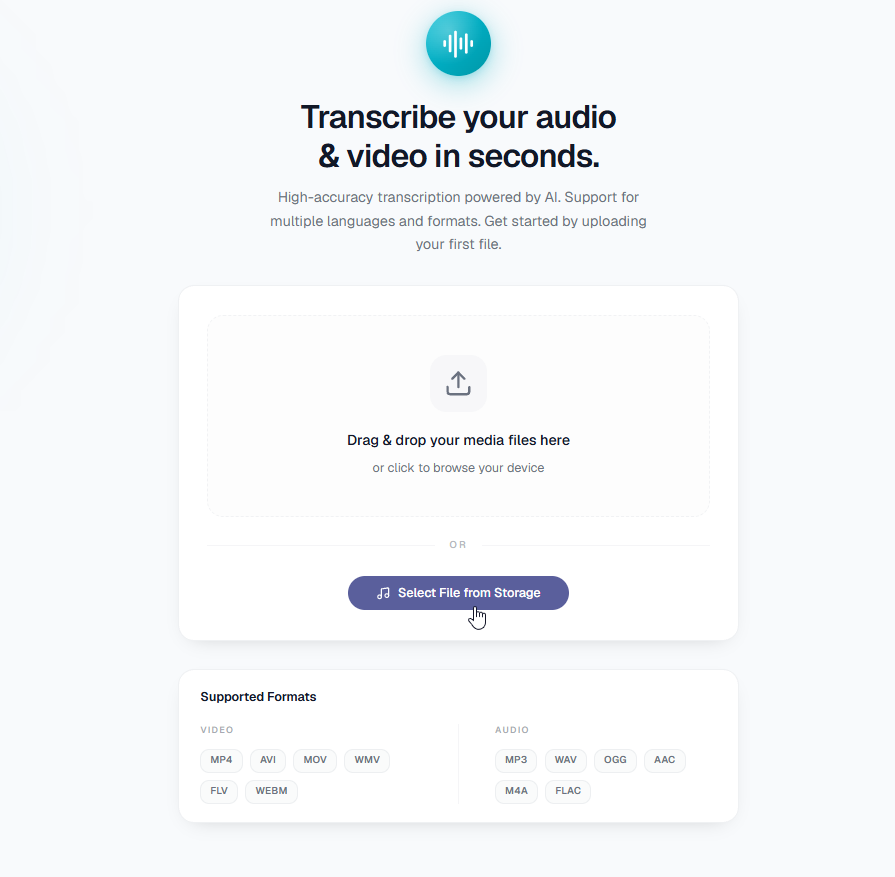
- Video Formats: MP4, AVI, MOV, WMV, FLV, WEBM
- Audio Formats: MP3, WAV, OGG, AAC, M4A, FLAC
- File size limitation : 50 MB
Step 1: Upload Your Audio or Video File
- Go to the Transcribe tool in your Marketr dashboard.
- Add your file using one of these options:
- Drag and Drop: Drag your file directly into the upload area.
- Browse Device: Click inside the upload box to choose a file from your computer.
- Select File from Storage: Click the Select File from Storage button to pick a file you already stored in your account.
3. Wait a moment for the file upload to reach 100% and show as completed.
Step 2: Select Your AI Engine
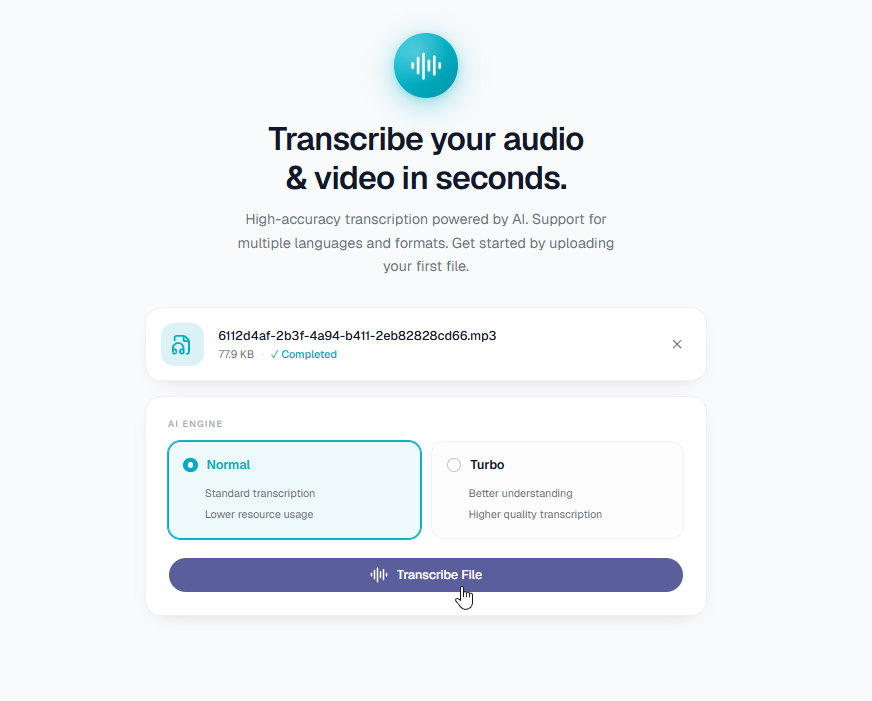
Once your file finishes uploading, choose the AI engine that best fits your needs:
- Normal: Provides standard transcription and uses fewer resources. This option is great for clear recordings and quick drafts.
- Turbo: Provides higher quality transcription and better understanding of complex audio. This option may not work well as is in beta mode.
Click the Transcribe File button to begin the process.
Step 3: Monitor Your Transcription Progress
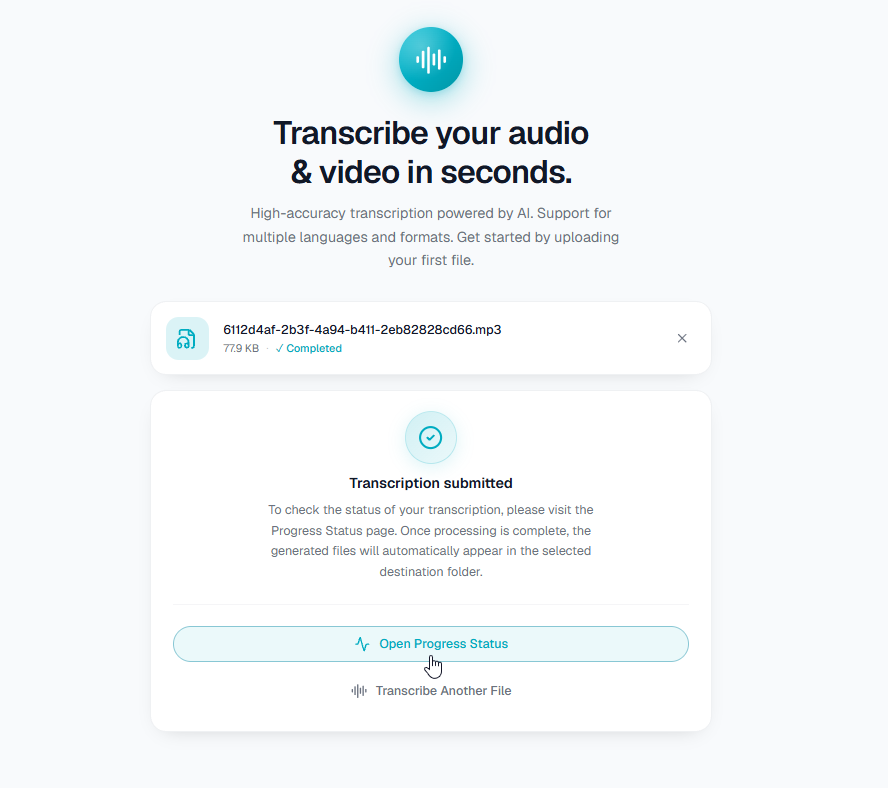
After submitting your file, you will see a confirmation screen. You have two choices:
- Click Open Progress Status to watch the processing progress.
- Click Transcribe Another File if you want to submit more media right away.
Step 4: View and Access Your Transcribed Files
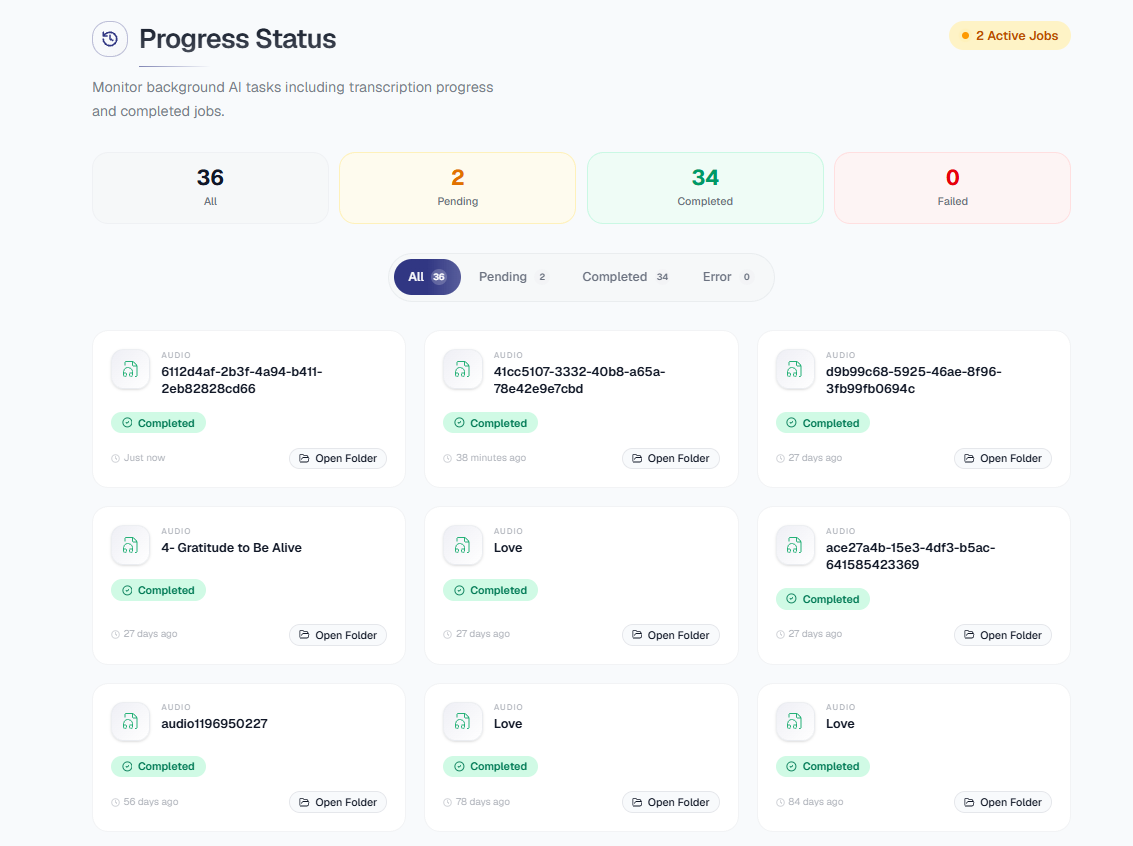
On the Progress Status page, you can manage and track all background tasks:
- Use the summary cards at the top to see total, pending, completed, or failed tasks.
- Filter your list by clicking All, Pending, Completed, or Error.
- When your file displays a green Completed badge, click Open Folder on the file card to view and download your transcript.
Was this article helpful?
That’s Great!
Thank you for your feedback
Sorry! We couldn't be helpful
Thank you for your feedback
Feedback sent
We appreciate your effort and will try to fix the article